
















Power Automate Desktopでリストを空にする方法/「リストのクリア」の使い方

sweep IT

リストのクリア」アクションを使うと、リスト内の項目をすべて削除することができます。リストではない変数にも使用可能です。

スポンサーリンク

リストのクリア

PowerAutomateDesktop リストのクリア1
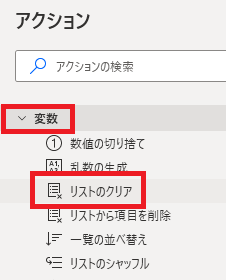
リストのクリアは、アクションペインの変数から追加できます。
PowerAutomateDesktop リストのクリア6
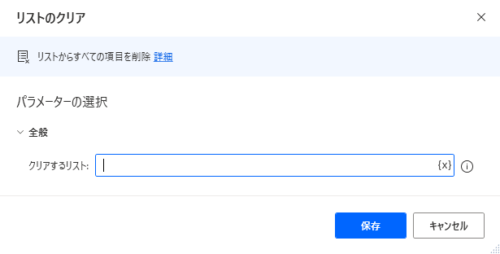
追加するとダイアログが表示されます。

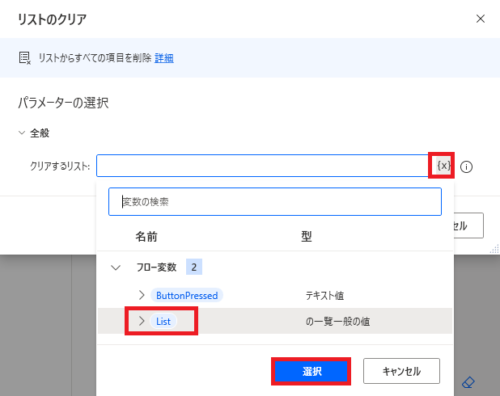
クリアするリスト

PowerAutomateDesktop リストのクリア3
中身をクリアするリストを{x}から指定するか、直接入力します。

実行例

PowerAutomateDesktop リストのクリア2
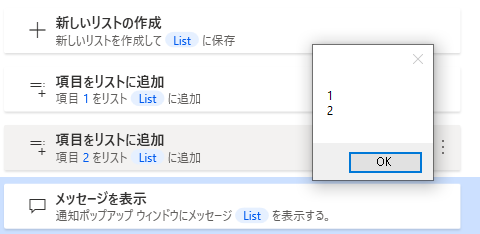
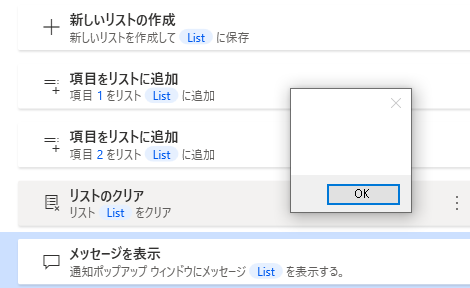
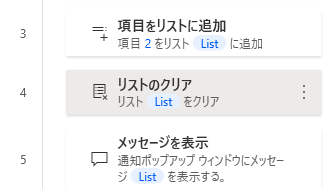
例として、リストにふたつ値を追加してメッセージを表示するフローを作りました。
PowerAutomateDesktop リストのクリア4
メッセージ表示前にリストのクリアを入れると、
PowerAutomateDesktop リストのクリア5
リストの中身が空になり、メッセージに何も表示されなくなるのが確認できます。

関連記事
Microsoft Power Automate Desktop(PAD)アクション、使い方一覧
Power Automate Desktopの使い方を機能・分類別に参照できるまとめです。

コメント

This website stores cookies on your computer. These cookies are used to provide a more personalized experience and to track your whereabouts around our website in compliance with the European General Data Protection Regulation. If you decide to to opt-out of any future tracking, a cookie will be setup in your browser to remember this choice for one year.

Accept or Deny