


















「マウスの位置を取得します」アクションでは、現在マウスのある位置の座標をx、yそれぞれ取得することができます。
マウスの位置を取得します
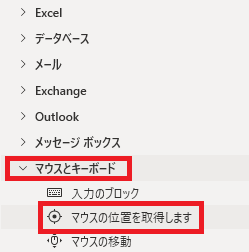
マウスの位置を取得しますは、アクションペインのマウスとキーボードから追加できます。
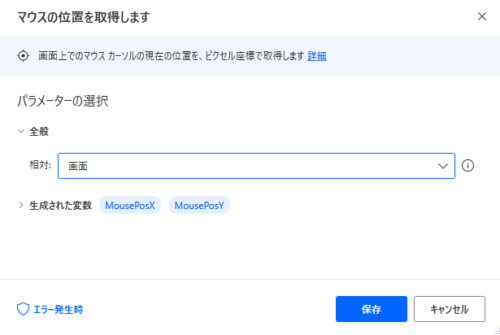
追加するとダイアログが表示されます。
相対
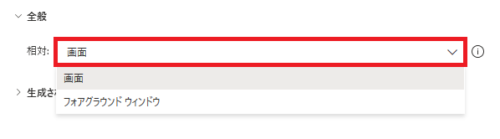
座標の基本軸をPC画面の左上に置くか、フォアグラウンドウィンドウの左上に置くかを選択できます。
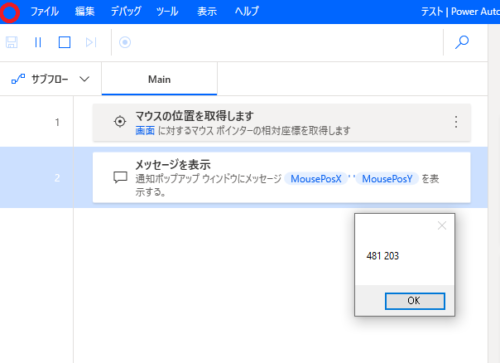
画面であればモニターの左上が0,0となり、右下が解像度の最大値となります。赤丸の当たりにマウスを置いても、ウィンドウが画面内のどの位置にあるかで数値は変動します。
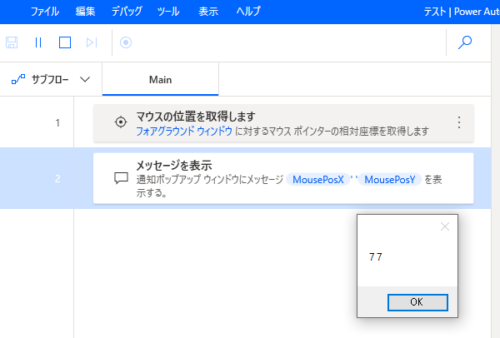
フォアグラウンドウィンドウの場合、画面内での位置にかかわらず、最前面のウィンドウの左上が0,0となります。
生成された変数
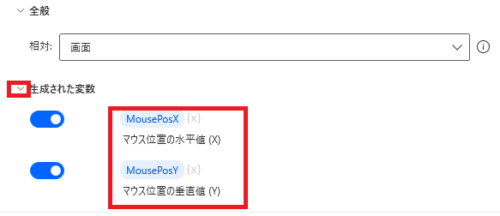
マウスのx位置、y位置がそれぞれ変数化されます。
変数名をクリックすることで名前の変更、{x}をクリックで既存の変数に上書きすることができます。
変数名をクリックすることで名前の変更、{x}をクリックで既存の変数に上書きすることができます。
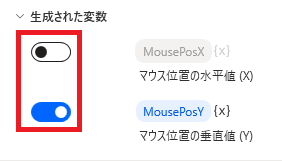
不要であれば、スイッチをオフにして変数を生成させないこともできます。
エラー発生時
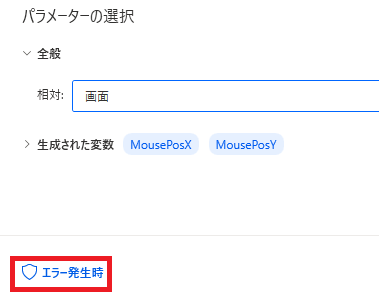
左下のエラー発生時をクリックすると、
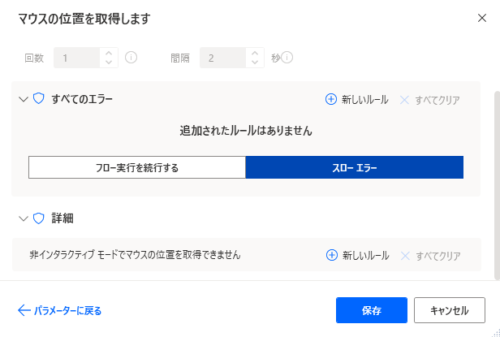
エラー時の処理を記述することができます。
「詳細」では非インタラクティブモードでマウスの位置を取得できない場合を指定できます。
「詳細」では非インタラクティブモードでマウスの位置を取得できない場合を指定できます。

Microsoft Power Automate Desktop(PAD)アクション、使い方一覧
Power Automate Desktopの使い方を機能・分類別に参照できるまとめです。
sunagitsune.com
2021.11.16


コメント