


















サウンドの再生では、システム音声に指定された音源及び、WAV形式の音声を選択して再生することができます。
システム音の変更方法についてはこちらでは触れないので、別途お調べください(検索結果)
サウンドの再生
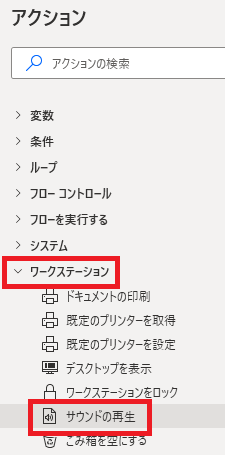
サウンドの再生は、アクションペインのワークステーションから追加できます。
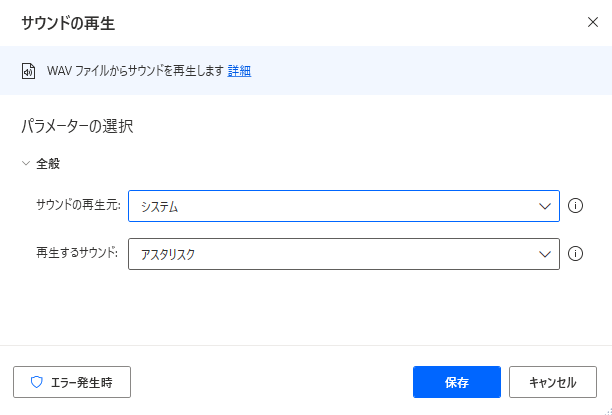
追加するとダイアログが表示されます。
サウンドの再生元
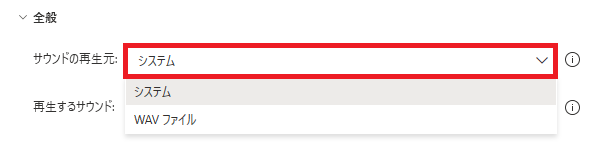
再生する音源を、システムまたはWAVファイルから選択できます。
再生するサウンド
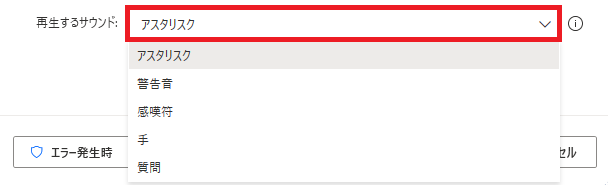
サウンドの再生元がシステムの時に表示されます。
アスタリスク、警告音、感嘆符、手、質問から音源を選択できます。初期設定だと音が割り当てられてなかったり、他の音と同じ音源だったりします。
アスタリスク、警告音、感嘆符、手、質問から音源を選択できます。初期設定だと音が割り当てられてなかったり、他の音と同じ音源だったりします。
再生するファイル
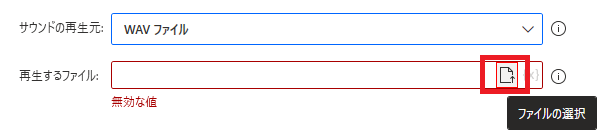
サウンドの再生元がWAVファイルの時に表示されます。
パスを入力したり、ファイルの選択から直接ファイルを選択してWAVファイルのパスを指定できます。
パスを入力したり、ファイルの選択から直接ファイルを選択してWAVファイルのパスを指定できます。
エラー発生時
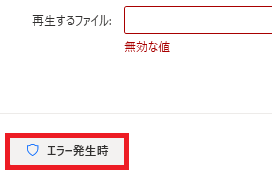
エラー時の処理を指定できます。
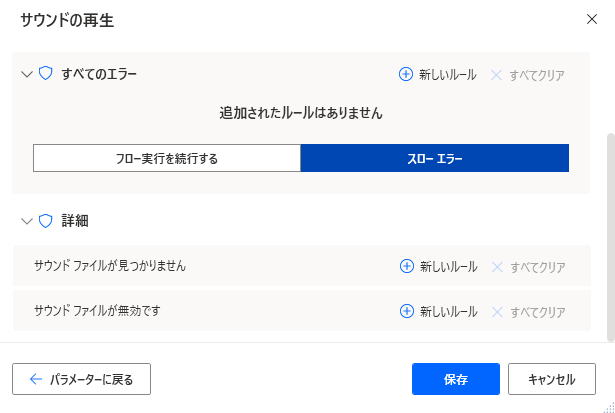
詳細では、サウンドファイルが見つからない、サウンドファイルが無効の場合を指定できます。

Microsoft Power Automate Desktop(PAD)アクション、使い方一覧
Power Automate Desktopの使い方を機能・分類別に参照できるまとめです。
sunagitsune.com
2021.11.16


コメント