

















Power Automate Desktopで既定の(今使っている)プリンター名を取得する方法

interior IT

既定のプリンターを取得アクションを使うことで、デフォルトに設定されているプリンターを取得できます。

スポンサーリンク

既定のプリンター

PowerAutomateDesktop 既定のプリンターを取得1
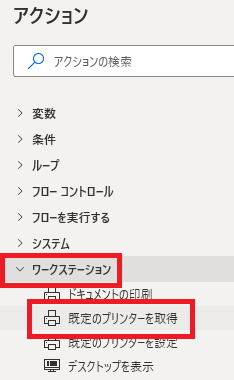
既定のプリンターを取得は、アクションペインのワークステーションから追加できます。
PowerAutomateDesktop 既定のプリンターを取得2
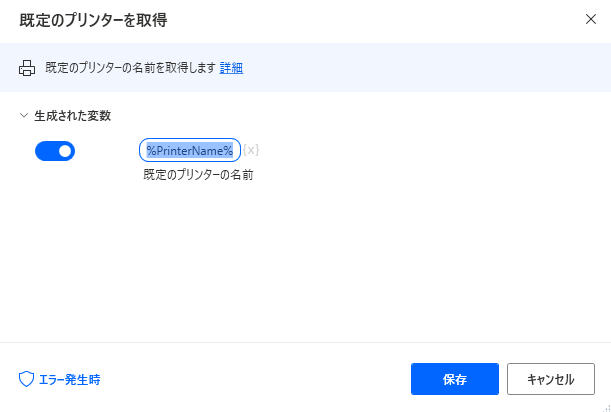
追加するとダイアログが表示され、
PowerAutomateDesktop 既定のプリンターを取得5
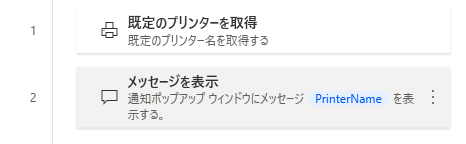
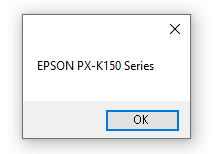
とりあえず保存して既定のプリンターを取得した結果(生成された変数)を何かしらで表示させれば、
PowerAutomateDesktop 既定のプリンターを取得6
現在規定に設定されているプリンター名を確認できます。

生成された変数

PowerAutomateDesktop 既定のプリンターを取得3
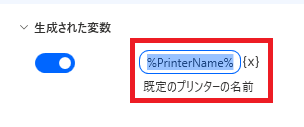
生成された変数既定のプリンターの名前では、変数名を変えたり、{x}から別の変数に取得したプリンター名を代入したりすることができます。
PowerAutomateDesktop 既定のプリンターを取得4
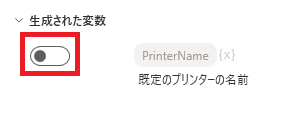
スイッチをオフにすると、取得したプリンター名を変数に代入させないこともできます。

エラー発生時
PowerAutomateDesktop 既定のプリンターを取得7
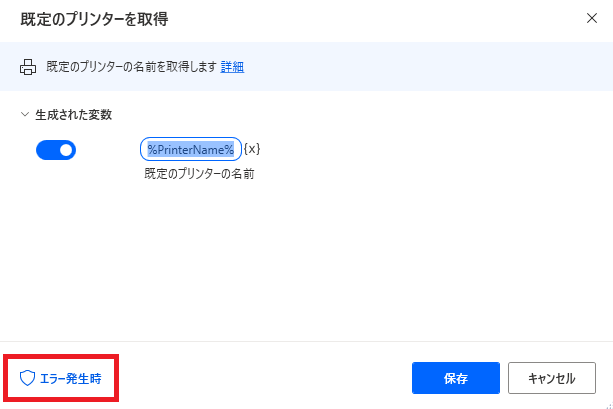
左下のエラー発生時をクリックすると、エラー発生時の処理を設定することができます。
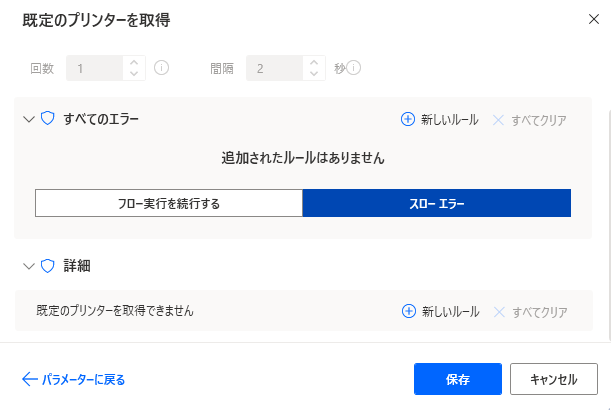
PowerAutomateDesktop 既定のプリンターを取得8
詳細既定のプリンターを取得できない場合のみ指定できます。

関連記事

Microsoft Power Automate Desktop(PAD)アクション、使い方一覧
Power Automate Desktopの使い方を機能・分類別に参照できるまとめです。

コメント

This website stores cookies on your computer. These cookies are used to provide a more personalized experience and to track your whereabouts around our website in compliance with the European General Data Protection Regulation. If you decide to to opt-out of any future tracking, a cookie will be setup in your browser to remember this choice for one year.

Accept or Deny